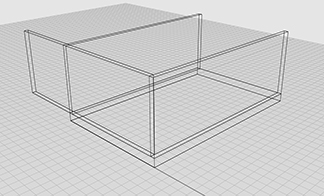
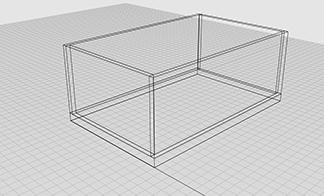
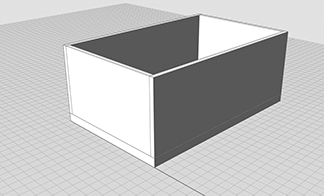
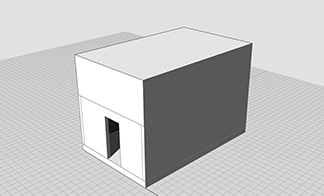
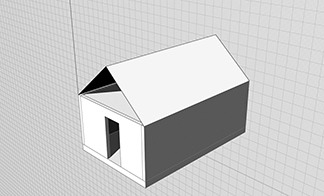
This step-by-step tutorial is a brief introduction to basic modeling tools in Rhino. It leads to the creation of a simplified model of a shipping container (shown below).

1 SET UP YOUR PROJECT:
1.1 Start Rhino and begin a New File.
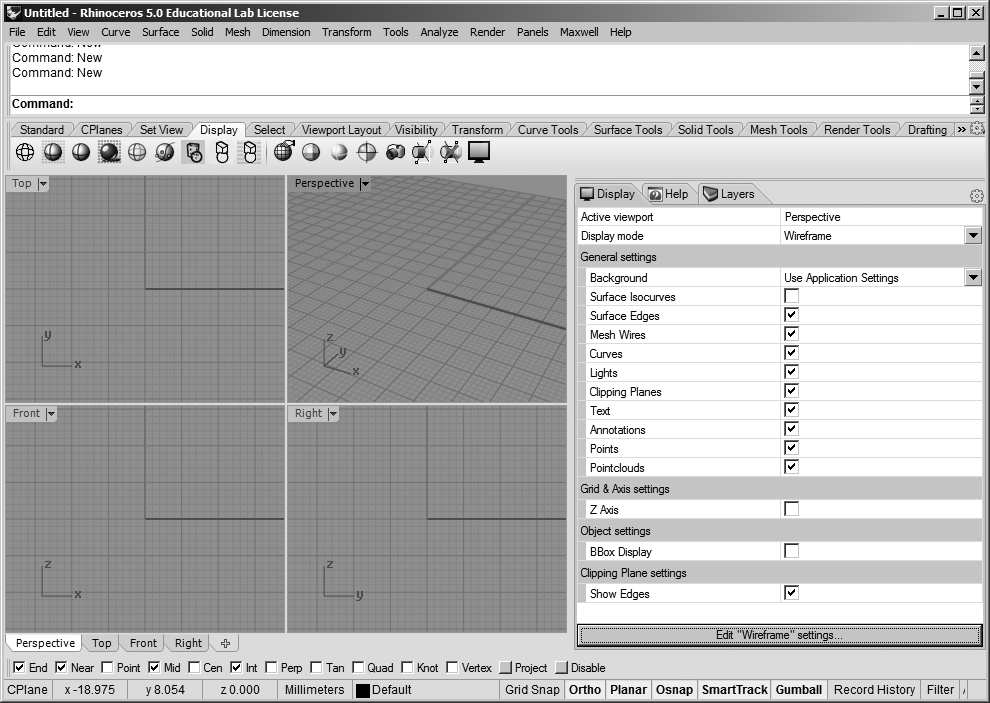
File > New. Select the Small Objects — Inches template and click Open. Note: The template affects how Rhino interprets the numbers and dimensions you enter. This template assumes that numbers represent inches, unless accompanied by a foot symbol (e. g., 3 = 3 inches; 3’ = 3 feet; 3’3 = 3 feet 3 inches). Drawing units can be changed later using the DocumentProperties command.
1.2 Set up the drawing layers.
Type LAYER at the Command prompt. This opens the Layers panel. Using this panel, click the New Layer button to create layers named GRID, WALLS, FLOOR, ROOF, and DOOR. Set each layer to a unique color. Note: These layers will store the objects you build. Layer names and colors are arbitrary. In particular, colors should not be expected to bear any relationship to the material being represented. It is conventional to choose distinct colors to make it easy to visually discern objects in different layers.
1.3 Set the GRID layer as the current layer.
In the Layers palette, click the radio button next to the GRID layer. Note: The current layer will receive any newly created objects.
1.4 Turn on the ORTHO function.
Click the [F8] key repeatedly until you see the note “Ortho is on” at the Command prompt. Note: The ORTHO function is an on-off switch, constraining many of the drawing and editing tools to moving along the X-Y axes.
1.5 Turn off the base grid.
Type GRID at the Command prompt. Then type H (for “ShowGrid”. Press [Enter] to return to the Command prompt.
1.6 Set the object snaps.
In the Object Snaps bar (bottom of the Rhino screen), make sure that the snaps for Intersection, Endpoint, and Midpoint are checked. Note: Object snaps are user-determined.
1.7 Maximize the Perspective viewport.
Double-click on the word “Perspective” at the top left corner of the Perspective viewport.
1.8 Draw a base rectangle.
Type RECTANGLE at the Command prompt. When prompted, enter 0,0 as the start point. For the second point, enter 38’4,7’5. Note: This base rectangle does not represent a built component. Instead, it measures the distance between alignment holes in the shipping container.
1.9 Zoom out.
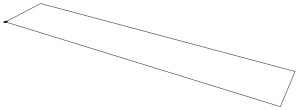
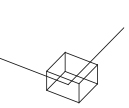
Type Z at the Command prompt, then type E. At this point, the model should look like the diagram below. Note: This keyboard command quickly zooms to show the entire model.
2 CONSTRUCT CORNER BLOCKS:
2.1 Set FLOOR as the current layer.
In the Layers palette, click the radio button next to the FLOOR layer. Note: The current layer will receive any newly created objects.
2.2 Zoom in on the lower right-hand corner of the base rectangle.
Spin the center wheel on the mouse, or type Z at the Command prompt and drag the mouse to define a zoom window. Note: Zooming in gives you the ability to work with greater precision.
2.3 Begin to build a box at the intersection of the gridlines.
Type BOX. Hover the mouse over the corner of the rectangle until the Intersection indicator appears. Click the mouse button. Note: The BOX command builds solid rectangular boxes.
2.4 Complete the box.
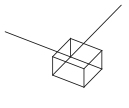
To complete the base of the box, type @7,-6.5. For the height, type 4.5. At this point, the model should look like the diagram below (zoomed-in view): Note: The @ symbol tells Rhino to use “relative coordinates” for the base of the box.
2.5 Move the box into the correct position.
Type MOVE at the Command prompt. Select the box by clicking on its edge. Click [Enter] to complete the selection process. When prompted for a Point to move from, click anywhere in the drawing window. When prompted for a Point to move to, type @-2.5,3. Click [Enter]. Note: This step shows that it is sometimes much easier to construct Rhino objects in a temporary, incorrect position, and then to move the objects into their permanent, correct position.

2.6 Zoom out.
Type Z at the Command prompt, then type E. Note: This causes Rhino to display the entire model.
2.7 Mirror the box to the opposite side of the rectangle.
Type MIRROR at the Command prompt. Click on the box to select it. Press [Enter] to complete the selection process. When prompted to select the Start of mirror plane, hover the mouse near the midpoint of one of the sides of the base rectangle. Click on a midpoint of the side. When prompted to set the End of mirror plane, move the mouse and Rhino will preview the mirrored location of the corner box. Click to complete the command. Note: The MIRROR command reflects objects through a line.
2.8 Mirror two boxes to the opposite side of the rectangle.
Repeat the previous command, but select both corner boxes this time, and mirror them around the other axis (see diagram below).

3 CONSTRUCT THE FLOOR:
3.1 Build the floor.
Type BOX. The base of the box should coincide with the outside, top corners of the corner boxes; its height is 2”.
4 CONSTRUCT CORNER POSTS:
4.1 Set the Display Mode to Shaded.
Choose View > Shaded. Note: The Display Mode controls how Rhino displays objects.
4.2 Set WALLS as the current layer.
In the Layers palette, click the radio button next to the WALLS layer. Note: The current layer will receive any newly created objects.
4.3 Zoom in on the lower right-hand corner of the base.
Spin the center wheel on the mouse, or type Z at the Command prompt and drag the mouse to define a zoom window.
4.4 Build the front corner post.
Type BOX. For the first corner, click on the corner of the floor. Type @-9.5,2. For the height, type 7’7” (seven feet, seven inches).
4.5 Zoom out.
Type Z at the Command prompt, then type E.
4.6 Zoom in on the lower left-hand corner of the base.
Spin the center wheel on the mouse, or type Z at the Command prompt and drag the mouse to define a zoom window.
4.7 Draw the outline of the rear corner post.
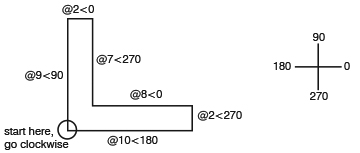
Type POLYLINE. Click on the lower left-hand corner of the floor to begin drawing an outline of the corner post. Refer to the diagram below for dimensions. Starting at the lower left-hand corner, continue clockwise around the outline. For each new point, type the numbers as written. Note: The POLYLINE command creates a “polyline” (a single object consisting of multiple straight or curved segments). In Rhino (as distinct from AutoCAD), a POLYLINE need not be on a single plane. A closed polyline can be used as the base for a solid extrusion, as shown in the next step.
4.8 Extrude the outline vertically to create the post.
Type EXTRUDECRV. Click on the outline of the corner post (the “curve”) to select it. Click [Enter] to complete the selection process. For the height, type 7’7” (seven feet, seven inches).
4.9 Cap the extrusion.
Type CAP. Select the extrusion that you just created. Press [Enter] to complete the selection process. Note: The CAP command converts the extruded curve from an open to a closed polysurface.
5 CONSTRUCT THE SIDE WALL:
5.1 Set a plan view and set its Display Mode to Shaded.
Click on the Top tab (bottom of the drawing window). Choose View > Shaded.
5.2 Draw the centerline of a wall panel.
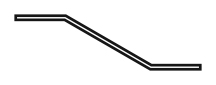
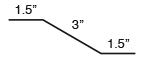
Type POLYLINE. Click on a point away from the shipping container to begin drawing an outline of the wall panel (we will move the panel into position later). Refer to the diagram below for dimensions. For the first segment, begin at the left, type @1.5<0. For the second segment, type @3<330. For the third and final segment, move the mouse to the right, and type @1.5<0. Press [Enter] to complete the polyline. Note: Again, in this step, we are creating an object in a temporary, incorrect position, so that we can move it into its permanent, correct position later.

5.3 Offset the centerline to create the edges of the wall panel.
Type OFFSET. Then type D (for Distance). Type 1/16 to set the offset distance. Next, click on the polyline you just drew, and then click once above it. Repeat the OFFSET command, but this time click below the line. Note: The OFFSET command creates a copy of the original object, “offset” by a specified distance.
5.4 Erase the original polyline.
Click on the original polyline to select it and press [Delete].
5.5 Join the edges of the wall panel.
Type LINE. Draw a line at each end of the panel outline to “cap” it. Refer to the diagram below.
5.6 Combine the segments into a single polyline.
Type CONNECT. Type J (for Join) to set the Join option to Yes. Click on one of the polyline segments, then click on one of the cap segments. Press [Enter] to repeat the command, then click on the same cap segment, and then on the next polyline segment. Press [Enter] again, click on the polyline segment, and finally [Enter] again, and click on the final cap segment. Note: The CONNECT command has the ability to join previously unconnected segments into a single polyline. However, the unconnected segments must have aligned endpoints.
5.7 Return to 3D modeling space.
Click on the Perspective tab (bottom of the drawing window).
5.8 Zoom out.
Type Z at the Command prompt, then type E.
5.9 Extrude the outline vertically to create the wall panel.
Type EXTRUDECRV. Click on the outline of the wall panel to select it. Click [Enter] to complete the selection process. For the height, type 7’7” (seven feet, seven inches).
5.10 Move the wall panel into position.
Type MOVE. Click on the wall panel to select it. For the base point, click the back corner of the panel. For the second point, click the corner of the corner post. Refer to the diagram below to see the correct position.

5.11 Erase the original polyline representing the base of the wall panel.
Click on the original polyline and press [Delete].
5.12 Mirror the panel.
Type MIRROR. Select the wall panel. Press [Enter] to complete the selection process. For the Start of mirror plane, click a point on the end of the wall panel. For the End of mirror plane, move the mouse and Rhino will preview the mirrored location of the wall panel. Click to complete the command. (Refer to the diagram below.)

5.13 Array the panel.
Type ARRAY. Select the two wall panels and press [Enter]. For the Number in X direction, type 40. For the Number in Y direction, type 1. For the Number in Z direction, type 1. For the X spacing or first reference point, click on point A in the diagram above. For the Second reference point, click on point B. Press [Enter] to accept the result and complete the command. Note: The ARRAY command is used to make multiple copies of a single object, according to defined rules.
5.14 Zoom out.
Type Z at the Command prompt, then type E.
5.15 Zoom in on the lower right-hand corner of the container.
Spin the center wheel on the mouse, or type Z at the Command prompt and click two points to define a zoom window.
5.16 Fill the gap in the wall.
Use the BOX command to build a box filling the gap between the final wall panel and the corner post.
6 CONSTRUCT OBJECTS AT TOP OF WALL:
6.1 Zoom out.
Type Z at the Command prompt, then type E.
6.2 Copy the corner blocks to the top of the wall.
Type COPY. Select the corner blocks (from the FLOOR layer). Copy them vertically so that they are set on top of the corner posts. Press [Esc] to complete the command.
6.3 Change the layer of the copied corner blocks.
Type CHANGELAYER. Select the two corner blocks you just copied. Assign these objects to the WALLS layer.
6.4 Zoom in on the top of the left end of the wall.
Spin the center wheel on the mouse, or type Z at the Command prompt and drag the mouse to define a zoom window.
6.5 Build a rail along the top of the wall.
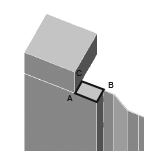
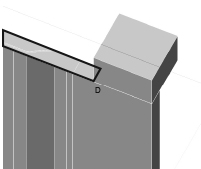
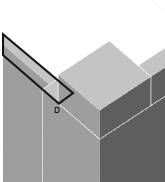
Type BOX. Begin the box by clicking on the corner point marked C in the upper diagram below. For the second point, zoom in on the other end of the wall, and click on the point marked D in the lower diagram below. For the height, type 4.5.


7 MIRROR OBJECTS:
7.1 Zoom out.
Type Z at the Command prompt, then type E.
7.2 Draw a temporary mirror line.
Type LINE. Draw a line from the midpoint of one of the short sides of the floor, away from the shipping container. (We will erase this line later.)
7.3 Isolate the WALLS layer.
In the Layers palette, turn off all layers except the WALLS layer. Note: Isolating a layer sometimes makes it easier to work.
7.4 Mirror the objects in the WALLS layer.
Type MIRROR. Draw a window around all of the objects in the WALLS layer. Press [Enter] to complete the selection. For the Start of mirror plane, click a point on the end of the temporary line you just drew. For the End of mirror plane, move the mouse and Rhino will preview the mirrored location of the objects. Click to complete the command.
7.5 Restore the previous layer settings.
In the Layers palette, turn on all layers.
7.6 Erase the temporary mirror line.
Click on the temporary mirror line and press [Delete].
8 CONSTRUCT THE REAR WALL:
8.1 Zoom in on the left side of the shipping container.
Spin the center wheel on the mouse, or type Z at the Command prompt and drag the mouse to define a zoom window.
8.2 Rotate the view so you are looking at the back of the container. (Refer to the picture below.)
Press and drag the right mouse button to rotate the view.

8.3 Build a rear wall.
Type BOX. For the first corner, click on a point away from the shipping container (we will move the box into its correct position later). For the other corner of the box base, type @1,-6’6. For the height, type 7’7.
8.4 Move the wall into its correct position.
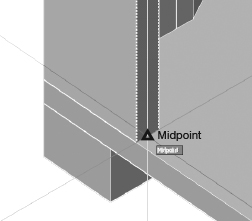
Type MOVE. Select the rear wall and set it in place, so that its outer face aligns with the midpoint of the corner post as shown in the figure below.

8.5 Zoom in on the top of the rear wall. (See the diagram below.)
Spin the center wheel on the mouse, or type Z at the Command prompt and drag the mouse to define a zoom window.

8.6 Build a rail along the top of the rear wall.
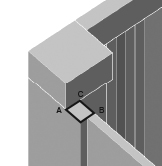
Type BOX. Begin the box by clicking on the corner point marked C in the diagram above. For the second point, zoom in on the other end of the wall, and click on the point marked D in the diagram below. For the height, type 4.5.

9 CONSTRUCT THE ROOF:
9.1 Zoom out.
Type Z at the Command prompt, then type E.
9.2 Zoom in on the right side (the front) of the shipping container.
Spin the center wheel on the mouse, or type Z at the Command prompt and drag the mouse to define a zoom window.
9.3 Build a rail across the top of the door opening.
Type BOX. Use the points on the corner boxes to set the dimensions of the box base. If you use the points at the top of the corner boxes, you can set the height as -4.5 (negative 4.5) and the box will fit between the corner boxes as shown in the diagram below.

9.4 Set ROOF as the current layer.
In the Layers palette, click the radio button next to the ROOF layer. Note: The current layer will receive any newly created objects.
9.5 Zoom out.
Type Z at the Command prompt, then type E.
9.6 Outline the roof.
Type POLYLINE. Trace the outline of the roof opening between the top rails on all four walls.
9.7 Isolate the ROOF layer.
In the Layers palette, turn off all layers except the ROOF layer.
9.8 Extrude the roof.
Type EXTRUDECRV. Select the outline you just drew and use -1 (negative 1) as the height.
9.9 Cap the extrusion.
Type CAP. Select the extrusion you just created. Press [Enter] to complete the command.
10 CONSTRUCT THE DOOR:
10.1 Restore the previous layer settings.
In the Layers palette, turn on all layers.
10.2 Set DOOR as the current layer.
In the Layers palette, click the radio button next to the DOOR layer. Note: The current layer will receive any newly created objects.
10.3 Rotate the view so you are looking at the front of the container. (Refer to the picture below.)
Press and drag the right mouse button to rotate the view.

10.4 Build the first door.
Type BOX. For the first corner, click on a point away from the shipping container (we will move the box into its correct position later). For the other corner of the box base, type @1,3’9-1/2”. For the height, type 7’7.
10.5 Move the door into its correct position.
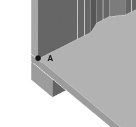
Type MOVE. Select the door and set it in place, so that its inner face aligns with the point marked A in the figure below.
10.6 Mirror the door.
Type MIRROR. Select the door and mirror it around the midpoint of the shipping container floor. This completes the model.

















 Architectural Software