Unknown's avatar

Posts by mikechristenson

Professor of Architecture, University of Minnesota mike001@umn.edu Architect and Principal/Owner Design and Energy Laboratory, LLC mike@dandelab.com

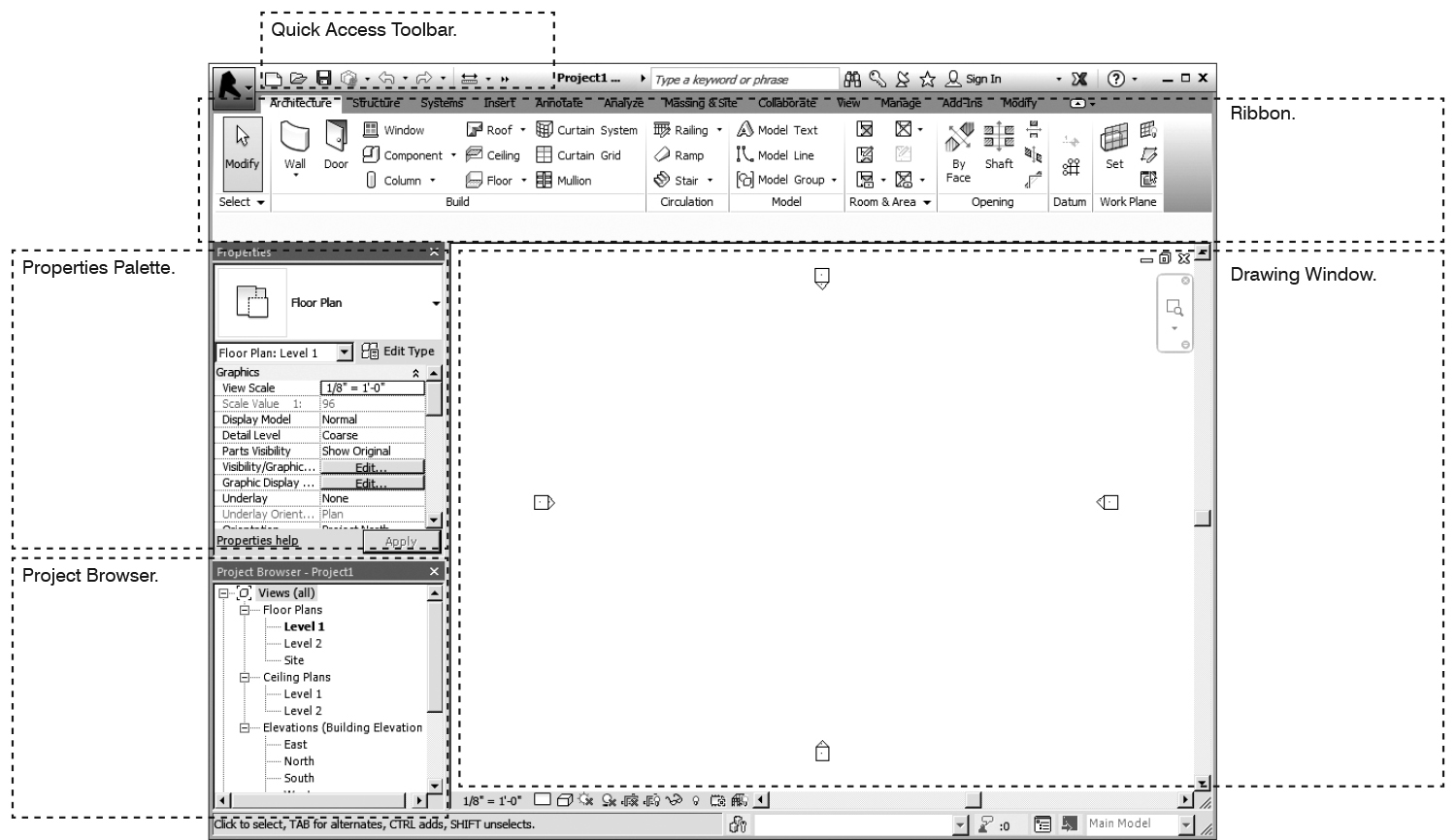
Revit: A Tour of the Interface

Print

1. Start Revit. Under Projects, select Architectural Template.

2. From the QUICK ACCESS TOOLBAR, click on the Default 3D view icon (it looks like a house).

3. On the Architecture tab in the RIBBON, find the Work Plane panel (far right side). Click on Show.

4. On the Architecture tab, Build panel, click Wall.

5. With the Wall command active, choose a wall type from the top area of the PROPERTIES PALETTE. (This area of the palette is known as the Type Selector.)

6. While the Wall command is active, notice that the RIBBON has changed to include a new set of tools. On the Modify | Place Wall tab, from the Draw panel, choose the Rectangle drawing tool.

7. Draw a rectangular enclosure by clicking two corner points on the Work Plane.

8. Choose Architecture > Build > Door. Insert one or more doors in the wall. Notice that Revit restricts how doors can be placed (i. e., doors must be “hosted” by walls).

9. Choose Architecture > Build > Window. Insert one or more windows in the wall. Windows must also be “hosted” by walls.

10. In the PROJECT BROWSER, double-click on the East Elevation view. Use this view to add new Levels (choose Architecture > Datum > Level, or Modify > Modify > Copy), or to change the location of existing Levels.

11. Return to the Default 3D view, and click on one wall of the rectangular enclosure. With the wall selected, change the Top Constraint (found in the PROPERTIES PALETTE) from Unconstrained to “Up to Level…”

12. Experiment with switching between views in the PROJECT BROWSER and changing the height of Levels.

What is Revit?

Revit is Building Information Modeling (BIM) software. Like AutoCAD, Rhino, or SketchUp, Revit can be used to construct a digital model of a building. Unlike these applications, Revit allows elements within a building model to be linked by adjustable parameters. This means that in a Revit model, the behavior of building elements can be mathematically defined; an important consequence is that elements can be linked to each other in such a way that a change to one results in an automatic change to others.

For example, raising the roof of a building in Revit will automatically increase the height of walls whose heights are constrained to the underside of the roof. Or, moving a wall in plan will automatically adjust the lengths of other walls whose endpoints are linked to the first wall.

Families of elements can be defined in Revit, such that changing the definition of a family will automatically change instances of that family throughout the model. For example, a single family of differently-sized windows can be defined, each sharing a common trim design and mullion profile. A change at the family level to the trim design will automatically update all windows in the project based on this family, regardless of their size.

Clearly, the act of constructing a parametric building model transcends the act of constructing a three-dimensional model like ones you may have built in SketchUp, Rhino, or AutoCAD. Revit depends, as these other applications also do, upon a designer’s ability to visualize and work within an on-screen simulated three-dimensional environment. Additionally, the act of creating a parametric building model in Revit requires that a designer be able to intelligently define relationships between and within building elements. It is also true that the successful user of Revit, in addition to understanding how the software works, must understand construction technology sufficiently well in order to intelligently define such relationships.

See:

www.autodesk.com/products/revit-family/overview for information, features overview, and other resources.

knowledge.autodesk.com/support/revit-products for miscellaneous support.

forums.autodesk.com/t5/revit-architecture/bd-p/133 for a discussion forum.


AutoCAD: Importing and Exporting

TO EXPORT A MODEL OR DRAWING FROM AUTOCAD:

AutoCAD offers a small number of writeable file formats. The most versatile and useful of these are the DWG and DXF formats. Use AutoCAD’s SAVEAS command to export your AutoCAD work in several versions of these formats. (Note, for example, that some software cannot read a 2010 DWG or a 2013 DWG file, so that you may need to SAVEAS a 2007 DWG file to ensure legibilty.)

AutoCAD’s WBLOCK (Write Block) command is useful if you want to export just part of a drawing or model to a new DWG file.

AutoCAD’s EXPORT command is minimally useful: it allows you to export your AutoCAD information in one of a few non-AutoCAD formats.


TO IMPORT A MODEL OR DRAWING TO AUTOCAD:

To get the best results for importing vector information to AutoCAD, the vector information should be previously saved in the DWG or DXF format. Most modeling and drawing software (Rhino, SketchUp, Revit, Illustrator) can write information in one or both of these formats. Use AutoCAD’s File > Open command to open files of either type (DWG or DXF).

AutoCAD also has an IMPORT command which is minimally useful in opening files of non-AutoCAD format.

Edit > Paste can be of use in specific situations when copying and pasting vector information from one document to another.

SketchUp: Basic Tools

SketchUp’s most important and frequently used tools are found in the Large Tool Set (View > Toolbars; check Large Tool Set). These tools include:


sketchup_large-tool-set_select

Select [spacebar] Selects objects.


sketchup_large-tool-set_paint

Paint Bucket [B] Applies colors and/or materials.


sketchup_large-tool-set_eraser

Eraser [E] Erases objects.


sketchup_large-tool-set_rectangle

Rectangle [R] Draws rectangles.


sketchup_large-tool-set_line

Line (Pencil) [L] Draws lines.


sketchup_large-tool-set_move

Move [M] Moves objects.


sketchup_large-tool-set_push-pull

Push/Pull [P] Pushes and pulls faces of objects.


sketchup_large-tool-set_tape-measure

Tape Measure [T] Measure distances and create guide lines.


sketchup_large-tool-set_orbit

Orbit [O] Orbits the view of the model.


sketchup_large-tool-set_pan

Hand [H] Pans the view of the model.


sketchup_large-tool-set_zoom

Zoom [Z] Zooms the view of the model.


MENU COMMANDS. Commonly used menu commands include:

File > Import. Import reference files (.dwg, .dxf, .3ds, .stl, .jpg, others).
File > Export. Export 3D or 2D copies in other formats (.dwg, .dxf, .mxs).
Edit > Make Group. Group objects together to prevent their modification.
View > Toolbars. Control the visibility of toolbars.
View > Face Style. Control the visibility of object faces.
Plugins > Maxwell > Maxwell Fire (if installed). Realtime feedback of rendered image.


VIEW COMMANDS. The Views toolbar (View > Toolbars; check Views) includes these important tools:

Iso: sketchup_views_iso

Top: sketchup_views_top

Front: sketchup_views_front

Right: sketchup_views_right

Back: sketchup_views_back

Left: sketchup_views_left


What is SketchUp?

SketchUp is a simple three-dimensional modeling program. It lacks the precision and wide toolset of more complex programs like AutoCAD or Rhino, but its ease of use and low cost (a freeware version is available) make it an attractive option for many students, interns, and architects.

LAYERS. Every object in a SketchUp model belongs to a unique layer. Layers and object layer assignments are controlled in the Layers palette (Window > Layers). When SketchUp opens AutoCAD DWG files, layers can be maintained. Choose Window > Layers to see the Layers palette.

FILE FORMATS. SketchUp’s native file format is .skp. Be aware that multiple versions of SketchUp are in popular use, and if you are exchanging information with others, it may be necessary to “downsave” a copy of your model in an older file format (for which, choose File > Save As, and select the appropriate type under “Save as type”).

INTEROPERABILITY. As a standalone tool SketchUp’s rendering and documentation capabilities are limited. For this reason, it is important to have a good working knowledge of SketchUp’s interoperability with other software applications. Used in combination with Maxwell, SketchUp can support the production of photorealistic renderings. Used together with AutoCAD or Rhino and Illustrator, SketchUp can support the production of professional-quality construction documents.

Photoshop: File Types

Photoshop can read and write several image file types, each of which is appropriate for different purposes.

JPEG: General purpose; allows for variable levels of file compression at the increasing expense of image quality. (A “lossy” file format.)

TIFF: A good archival file format. Supports layers. Allows for file compression using the LZW method (a “lossless” method).

PSD: Photoshop’s native file format. Supports layers, vector and shape information, text.

GIF: Works only with limited color palettes; appropriate for use on websites.

PDF: Useful if you’re sending information to someone who doesn’t have Photoshop.

Techniques for Reducing File Size

This page summarizes file-size reduction techniques for several software applications. File-size reduction strategies are usually directed toward managing the overall size of a package of documents.

NOTE: As a general rule, full-size (non-reduced) copies of important documents should always be archived and backed up: reduced-size copies are not usually meant as a replacement for full versions.


REDUCING FILE SIZE IN PHOTOSHOP IMAGES:

MANAGING LAYERS. A reduced-size Photoshop image, regardless of file type, should always be “flattened” into a single layer. Use the Layer > Flatten Image command.

MANAGING IMAGE RESOLUTION. Use the Image > Image Size command to adjust image dimensions and resolution. Images measuring approximately 5” or 6” in their longest dimension, with a resolution of 150 or 200 pixels per inch, usually represent a good balance between file size and image quality.

CHOOSING THE PROPER FILE TYPE. Generally, though not always, the smallest Photoshop files will be met by using the JPEG file type. Use the File > Save As command. Setting the JPEG quality to “Medium” will represent a good balance of size and quality. In the case of images with large areas of solid color, using the TIFF format (with LZW compression) will usually result in a smaller file.


REDUCING FILE SIZE IN ILLUSTRATOR DOCUMENTS:

CHOOSING THE PROPER FILE TYPE. Illustrator uses two different “native” file formats, AI and PDF. To reduce file size, use the File > Save As command to save your Illustrator file in PDF format. When prompted to choose an “Adobe PDF Preset,” choose “Smallest File Size.”

ADDITIONAL OPTIONS. Refer to this site for a detailed description of Illustrator optimization techniques:
http://helpx.adobe.com/illustrator/kb/optimize-native-pdf-file-sizes.html


REDUCING FILE SIZE IN PDF FILES:

COMBINING DOCUMENTS IN ADOBE ACROBAT. If you choose to combine files into a single PDF, click the “Smallest File Size” icon. Use the “Single PDF” rather than the “PDF Portfolio” option.

PRINTING AS THE SMALLEST FILE SIZE. Open a PDF in Acrobat. Choose File > Print. Select PDF as your printer (Adobe PDF or a PDF Writer). Click the “Properties” button. Under “Default Settings,” choose “Smallest File Size.” Click OK, and then click Print.


REDUCING FILE SIZE IN AUTOCAD DRAWINGS AND MODELS:

PURGING THE AUTOCAD DRAWING. AutoCAD drawings often contain unnecessary information (e. g., unused blocks, layers, text styles, etc.). Type PURGE at the command prompt to eliminate such information. Follow the PURGE command with the File > Save As command.

THE OVERKILL COMMAND. Type OVERKILL at the command prompt to delete certain kinds of information in the drawing, e. g., lines which overlap other lines.

FILE > SAVE AS. Use this command to save a new copy of your AutoCAD file. This will usually reduce file size.


REDUCING FILE SIZE IN REVIT MODELS:

PURGING UNUSED ITEMS. Under the Manage tab, Settings panel, choose Purge Unused. This tool will tend to have a greater effect on Projects than Families.

[APPLICATION MENU] > SAVE AS. Use this command to save a new copy of your Revit file. This will usually reduce file size. Test the effect of checking the “Compact File” option while saving (Click Options in the Save As dialog box).


REDUCING FILE SIZE IN RHINO MODELS:

PURGE THE MODEL. Type PURGE at Rhino’s command prompt.

FILE > SAVE AS. Use this command to save a new copy of your Rhino file. This will usually reduce file size.


REDUCING FILE SIZE IN SKETCHUP MODELS:

PURGE UNUSED. Choose Window > Model Info > Statistics; click Purge Unused. Follow this with File > Save As.

ELIMINATE TEXTURES. A copy of your model saved without textures will be much smaller than the same model with textures.

FILE > SAVE AS. Use this command to save a new copy of your SketchUp file. This will usually reduce file size.



AutoCAD: Inserting, Scaling, and Clipping Images

INSERTING IMAGES: AutoCAD can import Photoshop-readable images, in either the .tif or .jpg format, into drawings for use as backgrounds for tracing, or for applied material textures in 3D models.

Before inserting an image, create and set as current a new layer for images, to preserve the ability to control the image’s visibility separately from other objects in the drawing.

Use the IMAGEATTACH command to bring a Photoshop-readable image into an AutoCAD drawing. In the resulting Image dialog box, specify an insertion point, scale, and rotation, or set these to specify on-screen. Because the image can be moved, scaled, and rotated at any time after being inserted, the entries in the Image dialog box are inconsequential to long-term work.

The DRAWORDER commands prevents images from obscuring other objects in the drawing. However, because AutoCAD rearranges objects following certain commands, it may be necessary to manually reorganize objects repeatedly.


SCALING AN IMAGE: Use the SCALE command to scale an imported image (such as a map or an elevation-oblique image) to its true scale.

1. Type SCALE. When prompted to select objects, select the photograph by clicking on its edge.

2. When prompted to specify a base point, click on any point in the AutoCAD drawing.

3. When prompted to specify a scale factor or [Reference], type R for Reference.

4. When prompted to specify a reference length, click on two points in the image, the distance between which you know.

5. When prompted to specify a new length, type the desired (i. e. the known) length.


scale_reference


CLIPPING AN IMAGE: Use the IMAGECLIP command to clip an image to a rectangle or other polygonal frame.

Scale Factor

Scale factor is a means of expressing the relationship between a measured object and its representation, or sometimes between a digital drawing and a printout.

Determine the scale factor for common architectural scales by expressing the scale designation as a ratio in the form of 1 : x, as shown here:

232-autocad-guide-04-38


Be aware of the visual meaning of scale factor:

ruler

InDesign: Packaging

Packaging an InDesign document is an effective way of collecting all of the images and fonts into a single directory.

Packaging can be done to prepare the document for printing by an external vendor, or it can be done simply to gather together linked images from a disparate collection of directories.


TO PACKAGE AN INDESIGN DOCUMENT:

Before packaging a document:

1. Conduct a preflight check. Choose Window > Output > Preflight to check for errors.

2. Check and correct spelling. Choose Edit > Spelling > Check Spelling.

When you are ready, choose File > Package.