Unknown's avatar

Posts by mikechristenson

Professor of Architecture, University of Minnesota mike001@umn.edu Architect and Principal/Owner Design and Energy Laboratory, LLC mike@dandelab.com

Step-by-Step: Building a Simple House in Rhino

1.    Start Rhino, using the Large Objects – Feet template.

2.    Double-click on the Perspective viewport label to maximize the viewport.

3.    Type OSNAP and make sure only Endpoint and Intersection snaps are “On.”

4.    Type LAYER to bring up the Layers palette. Double-click on Layer 01 to rename it Floor. Click in the check-mark column to make the Floor layer current.

5.    Type BOX. For the First corner of base, type 0,0 (zero comma zero) [enter].

6.    For the Other corner of base, type @14’,22’ (at fourteen feet comma twenty-two feet) [enter].

7.    For Height, type 1’ (one foot) [enter].

01

8.    In the Layers palette, double-click on Layer 02 to rename it Walls. Click in the check-mark column to make the Walls layer current.

9.    Type BOX. For the First corner of base, click on the near corner of the floor. This point represents the outside corner of the bottom of the first wall. (END and INT will highlight to let you know you are snapping to the endpoint/intersection at the corner of the existing box.)

10.    For the Other corner of base, type @-6”,22’ (at negative six inches comma twenty-two feet) [enter].

11.    For Height, type 8’ (eight feet) [enter].

02

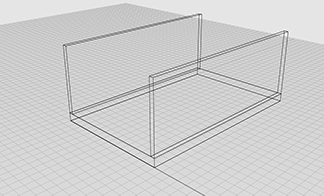
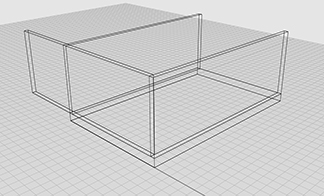
12.    Type COPY. Select the wall you just built. For Point to copy from, choose the inside corner of the base of the wall you just built. For Point to copy to, choose the outside corner of the opposite side of the floor.

03

13.    Type COPY. Select the original wall again. For Point to copy from, choose 0,0. For Point to copy to, choose 0,0. (This is known as copying in place.)

14.    Type ROTATE. Select the original wall. Rhino will prompt you to select one of two walls in the same place; choose either one.

15.    For the Center of rotation, click on the outside corner of the base of the wall.

16.    For the Angle or first reference point, type 90.

17.    Type MOVE. Select the copied wall. Move the wall so its corner aligns properly with the first wall you built. (OK if walls overlap.)

04

18.    Type SCALE1D. Select the copied wall. For the Origin point, click on the near corner of the base of the wall. For the Scale factor or first reference point, click on the far corner (same side) of the base of the wall. For the Second reference point, click on the inside corner of the second wall you built. (Again, OK if walls overlap.)

05

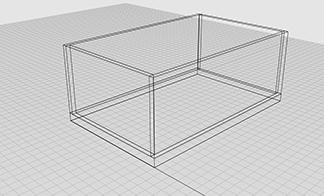
19.    Use the COPY command to copy the new wall to the opposite side of the floor.

06

20.    Type BOOLEANUNION. Select the four walls you just built and press [enter].

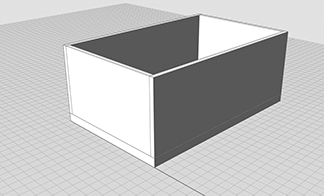
21.    Type SETDISPLAYMODE. Set the display mode to Rendered.

07

22.    Type OSNAP and check the Nearest snap “On.” (This will allow Rhino to lock to lines and edges.)

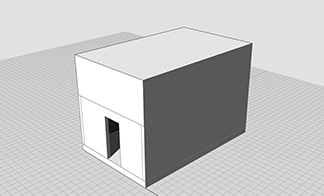
23.    Type BOX. For the First corner of base, click on an inside edge of the short wall already built. (This point will correspond to the corner of the front door.) For Other corner of base, type @3’,-6” (at three feet comma negative six inches). For Height, type 6’8” (six feet eight inches).

24.    Type BOOLEANDIFFERENCE. Select the walls [enter], then the door [enter].

08

25.    In the Layers palette, double-click on Layer 03 to rename it Roof. Click in the check-mark column to make the Walls layer current.

26.    Type BOX. For the First corner of base, click on the near outside corner of the top of the walls. For the Other corner, click on the far outside corner of the walls. For the Height, type 6’ (six feet).

09

27.    Type CPLANE. Invoke the 3Point option either by clicking on 3Point in the Command line, or by typing I [enter]. Click any three non-colinear points on the front surface of the “roof box” you just drew. (This changes the orientation of the base grid.)

10
28.    Type OSNAP and check the Midpoint snap “On.”

29.    Type POLYLINE and draw a triangle on the front face of the “roof box” corresponding to the roof gable. Make sure to “close” the polyline by clicking on the first point to complete the triangle (a total of four clicks).

30.    Click on the “roof box” and press [delete].

11

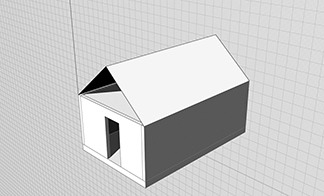
31.    Type EXTRUDECRV. Select the triangle you just drew. Click on the back of the house to “extrude” the triangle into a gable.

12
32.    Type CAP. Select the extruded triangle.

13

33.    Type CPLANE. Invoke the World option [w] and the Top plane [t].
14

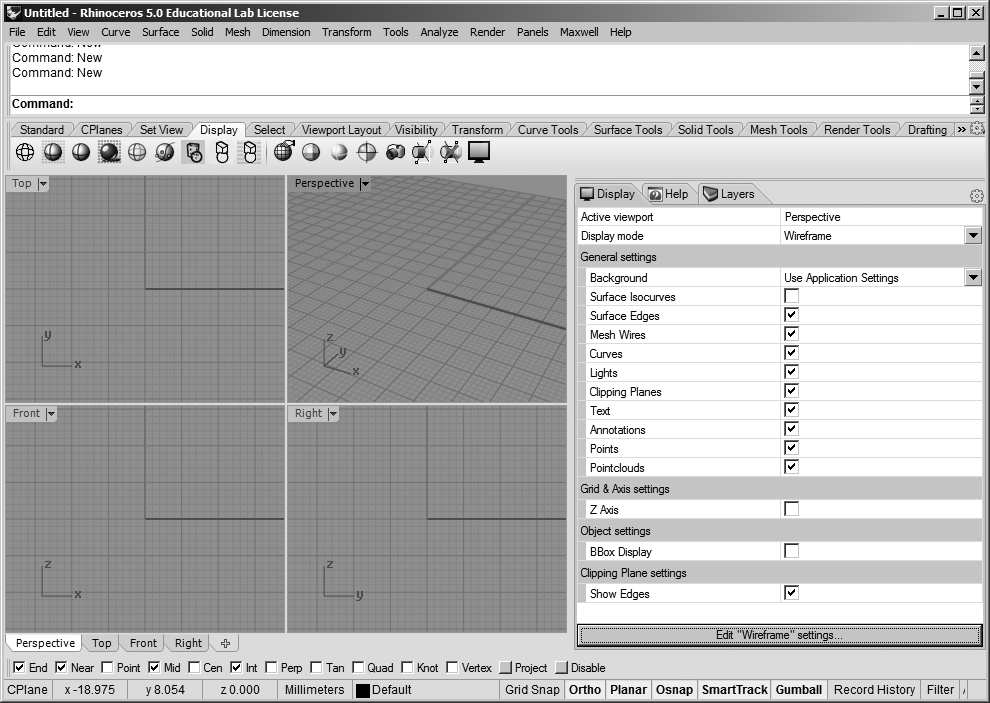
Rhino: Basic Interface Navigation

INTERFACE.

Rhino’s interface consists of a menu bar, a command window, toolbars and sidebars, panels, viewports, and an object snap (osnap) toolbar. Each of these interface components allows you to communicate information with Rhino in different ways. Usually, the Command prompt includes information about what Rhino expects you to do next – it’s good practice to check the Command prompt for instructions.

See this link for more information on the Rhino interface.


VIEWPORTS.

Viewports are windows through which your model is made simultaneously visible from different vantage points and in different projections. There are four viewports by default.

Double-clicking a viewport title will toggle between a full-screen and a tiled view.

Useful viewport-related commands:

3VIEW

4VIEW

SETVIEW

PLAN


PANNING, ROTATING, AND ZOOMING.

Hold down the right mouse button to rotate/orbit the view within a viewport.

To pan the view, hold down SHIFT while holding the right mouse button.

Roll the mouse wheel to zoom in and out.

See this link for more information on navigating in Rhino.


What is Rhino?

rhino

RHINO is 3D modeling software produced by McNeel. It is widely used in design disciplines and is distinguished by its ability to handle complex curves and curved surfaces based on the NURBS mechanism.

See:

www.rhino3d.com for information, links, examples, and other resources.

www.rhino3d.com/tutorials for tutorials.

v5.rhino3d.com for a discussion forum.

www.food4rhino.com for third-party plugins to extend Rhino’s functionality.

Step-by-Step: Rhino Tutorial / Shipping Container

This step-by-step tutorial is a brief introduction to basic modeling tools in Rhino. It leads to the creation of a simplified model of a shipping container (shown below).

container-12

1 SET UP YOUR PROJECT:

1.1 Start Rhino and begin a New File.

File > New. Select the Small Objects — Inches template and click Open. Note: The template affects how Rhino interprets the numbers and dimensions you enter. This template assumes that numbers represent inches, unless accompanied by a foot symbol (e. g., 3 = 3 inches; 3’ = 3 feet; 3’3 = 3 feet 3 inches). Drawing units can be changed later using the DocumentProperties command.

1.2 Set up the drawing layers.

Type LAYER at the Command prompt. This opens the Layers panel. Using this panel, click the New Layer button to create layers named GRID, WALLS, FLOOR, ROOF, and DOOR. Set each layer to a unique color. Note: These layers will store the objects you build. Layer names and colors are arbitrary. In particular, colors should not be expected to bear any relationship to the material being represented. It is conventional to choose distinct colors to make it easy to visually discern objects in different layers.

1.3 Set the GRID layer as the current layer.

In the Layers palette, click the radio button next to the GRID layer. Note: The current layer will receive any newly created objects.

1.4 Turn on the ORTHO function.

Click the [F8] key repeatedly until you see the note “Ortho is on” at the Command prompt. Note: The ORTHO function is an on-off switch, constraining many of the drawing and editing tools to moving along the X-Y axes.

1.5 Turn off the base grid.

Type GRID at the Command prompt. Then type H (for “ShowGrid”. Press [Enter] to return to the Command prompt.

1.6 Set the object snaps.

In the Object Snaps bar (bottom of the Rhino screen), make sure that the snaps for Intersection, Endpoint, and Midpoint are checked. Note: Object snaps are user-determined.

1.7 Maximize the Perspective viewport.

Double-click on the word “Perspective” at the top left corner of the Perspective viewport.

1.8 Draw a base rectangle.

Type RECTANGLE at the Command prompt. When prompted, enter 0,0 as the start point. For the second point, enter 38’4,7’5. Note: This base rectangle does not represent a built component. Instead, it measures the distance between alignment holes in the shipping container.

1.9 Zoom out.

Type Z at the Command prompt, then type E. At this point, the model should look like the diagram below. Note: This keyboard command quickly zooms to show the entire model.
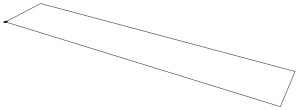
Untitled

2 CONSTRUCT CORNER BLOCKS:

2.1 Set FLOOR as the current layer.

In the Layers palette, click the radio button next to the FLOOR layer. Note: The current layer will receive any newly created objects.

2.2 Zoom in on the lower right-hand corner of the base rectangle.

Spin the center wheel on the mouse, or type Z at the Command prompt and drag the mouse to define a zoom window. Note: Zooming in gives you the ability to work with greater precision.

2.3 Begin to build a box at the intersection of the gridlines.

Type BOX. Hover the mouse over the corner of the rectangle until the Intersection indicator appears. Click the mouse button. Note: The BOX command builds solid rectangular boxes.

2.4 Complete the box.

To complete the base of the box, type @7,-6.5. For the height, type 4.5. At this point, the model should look like the diagram below (zoomed-in view): Note: The @ symbol tells Rhino to use “relative coordinates” for the base of the box.
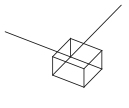
02

2.5 Move the box into the correct position.

Type MOVE at the Command prompt. Select the box by clicking on its edge. Click [Enter] to complete the selection process. When prompted for a Point to move from, click anywhere in the drawing window. When prompted for a Point to move to, type @-2.5,3. Click [Enter]. Note: This step shows that it is sometimes much easier to construct Rhino objects in a temporary, incorrect position, and then to move the objects into their permanent, correct position.

03

2.6 Zoom out.

Type Z at the Command prompt, then type E. Note: This causes Rhino to display the entire model.

2.7 Mirror the box to the opposite side of the rectangle.

Type MIRROR at the Command prompt. Click on the box to select it. Press [Enter] to complete the selection process. When prompted to select the Start of mirror plane, hover the mouse near the midpoint of one of the sides of the base rectangle. Click on a midpoint of the side. When prompted to set the End of mirror plane, move the mouse and Rhino will preview the mirrored location of the corner box. Click to complete the command. Note: The MIRROR command reflects objects through a line.

2.8 Mirror two boxes to the opposite side of the rectangle.

Repeat the previous command, but select both corner boxes this time, and mirror them around the other axis (see diagram below).

04

3 CONSTRUCT THE FLOOR:

3.1 Build the floor.

Type BOX. The base of the box should coincide with the outside, top corners of the corner boxes; its height is 2”.

4 CONSTRUCT CORNER POSTS:

4.1 Set the Display Mode to Shaded.

Choose View > Shaded. Note: The Display Mode controls how Rhino displays objects.

4.2 Set WALLS as the current layer.

In the Layers palette, click the radio button next to the WALLS layer. Note: The current layer will receive any newly created objects.

4.3 Zoom in on the lower right-hand corner of the base.

Spin the center wheel on the mouse, or type Z at the Command prompt and drag the mouse to define a zoom window.

4.4 Build the front corner post.

Type BOX. For the first corner, click on the corner of the floor. Type @-9.5,2. For the height, type 7’7” (seven feet, seven inches).

4.5 Zoom out.

Type Z at the Command prompt, then type E.

4.6 Zoom in on the lower left-hand corner of the base.

Spin the center wheel on the mouse, or type Z at the Command prompt and drag the mouse to define a zoom window.

4.7 Draw the outline of the rear corner post.

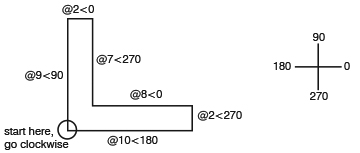
Type POLYLINE. Click on the lower left-hand corner of the floor to begin drawing an outline of the corner post. Refer to the diagram below for dimensions. Starting at the lower left-hand corner, continue clockwise around the outline. For each new point, type the numbers as written. Note: The POLYLINE command creates a “polyline” (a single object consisting of multiple straight or curved segments). In Rhino (as distinct from AutoCAD), a POLYLINE need not be on a single plane. A closed polyline can be used as the base for a solid extrusion, as shown in the next step.
rhino_tutorial_02

4.8 Extrude the outline vertically to create the post.

Type EXTRUDECRV. Click on the outline of the corner post (the “curve”) to select it. Click [Enter] to complete the selection process. For the height, type 7’7” (seven feet, seven inches).

4.9 Cap the extrusion.

Type CAP. Select the extrusion that you just created. Press [Enter] to complete the selection process. Note: The CAP command converts the extruded curve from an open to a closed polysurface.

5 CONSTRUCT THE SIDE WALL:

5.1 Set a plan view and set its Display Mode to Shaded.

Click on the Top tab (bottom of the drawing window). Choose View > Shaded.

5.2 Draw the centerline of a wall panel.

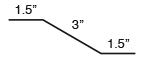
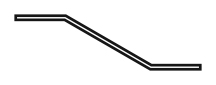
Type POLYLINE. Click on a point away from the shipping container to begin drawing an outline of the wall panel (we will move the panel into position later). Refer to the diagram below for dimensions. For the first segment, begin at the left, type @1.5<0. For the second segment, type @3<330. For the third and final segment, move the mouse to the right, and type @1.5<0. Press [Enter] to complete the polyline. Note: Again, in this step, we are creating an object in a temporary, incorrect position, so that we can move it into its permanent, correct position later.

07

5.3 Offset the centerline to create the edges of the wall panel.

Type OFFSET. Then type D (for Distance). Type 1/16 to set the offset distance. Next, click on the polyline you just drew, and then click once above it. Repeat the OFFSET command, but this time click below the line. Note: The OFFSET command creates a copy of the original object, “offset” by a specified distance.

5.4 Erase the original polyline.

Click on the original polyline to select it and press [Delete].

5.5 Join the edges of the wall panel.

Type LINE. Draw a line at each end of the panel outline to “cap” it. Refer to the diagram below.
08

5.6 Combine the segments into a single polyline.

Type CONNECT. Type J (for Join) to set the Join option to Yes. Click on one of the polyline segments, then click on one of the cap segments. Press [Enter] to repeat the command, then click on the same cap segment, and then on the next polyline segment. Press [Enter] again, click on the polyline segment, and finally [Enter] again, and click on the final cap segment. Note: The CONNECT command has the ability to join previously unconnected segments into a single polyline. However, the unconnected segments must have aligned endpoints.

5.7 Return to 3D modeling space.

Click on the Perspective tab (bottom of the drawing window).

5.8 Zoom out.

Type Z at the Command prompt, then type E.

5.9 Extrude the outline vertically to create the wall panel.

Type EXTRUDECRV. Click on the outline of the wall panel to select it. Click [Enter] to complete the selection process. For the height, type 7’7” (seven feet, seven inches).

5.10 Move the wall panel into position.

Type MOVE. Click on the wall panel to select it. For the base point, click the back corner of the panel. For the second point, click the corner of the corner post. Refer to the diagram below to see the correct position.

09

5.11 Erase the original polyline representing the base of the wall panel.

Click on the original polyline and press [Delete].

5.12 Mirror the panel.

Type MIRROR. Select the wall panel. Press [Enter] to complete the selection process. For the Start of mirror plane, click a point on the end of the wall panel. For the End of mirror plane, move the mouse and Rhino will preview the mirrored location of the wall panel. Click to complete the command. (Refer to the diagram below.)

10

5.13 Array the panel.

Type ARRAY. Select the two wall panels and press [Enter]. For the Number in X direction, type 40. For the Number in Y direction, type 1. For the Number in Z direction, type 1. For the X spacing or first reference point, click on point A in the diagram above. For the Second reference point, click on point B. Press [Enter] to accept the result and complete the command. Note: The ARRAY command is used to make multiple copies of a single object, according to defined rules.

5.14 Zoom out.

Type Z at the Command prompt, then type E.

5.15 Zoom in on the lower right-hand corner of the container.

Spin the center wheel on the mouse, or type Z at the Command prompt and click two points to define a zoom window.

5.16 Fill the gap in the wall.

Use the BOX command to build a box filling the gap between the final wall panel and the corner post.

6 CONSTRUCT OBJECTS AT TOP OF WALL:

6.1 Zoom out.

Type Z at the Command prompt, then type E.

6.2 Copy the corner blocks to the top of the wall.

Type COPY. Select the corner blocks (from the FLOOR layer). Copy them vertically so that they are set on top of the corner posts. Press [Esc] to complete the command.

6.3 Change the layer of the copied corner blocks.

Type CHANGELAYER. Select the two corner blocks you just copied. Assign these objects to the WALLS layer.

6.4 Zoom in on the top of the left end of the wall.

Spin the center wheel on the mouse, or type Z at the Command prompt and drag the mouse to define a zoom window.

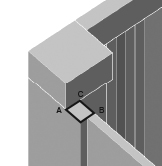
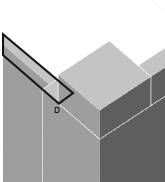
6.5 Build a rail along the top of the wall.

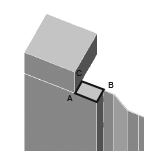
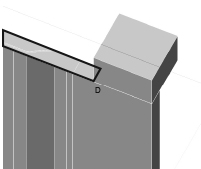
Type BOX. Begin the box by clicking on the corner point marked C in the upper diagram below. For the second point, zoom in on the other end of the wall, and click on the point marked D in the lower diagram below. For the height, type 4.5.

11

12

7 MIRROR OBJECTS:

7.1 Zoom out.

Type Z at the Command prompt, then type E.

7.2 Draw a temporary mirror line.

Type LINE. Draw a line from the midpoint of one of the short sides of the floor, away from the shipping container. (We will erase this line later.)

7.3 Isolate the WALLS layer.

In the Layers palette, turn off all layers except the WALLS layer. Note: Isolating a layer sometimes makes it easier to work.

7.4 Mirror the objects in the WALLS layer.

Type MIRROR. Draw a window around all of the objects in the WALLS layer. Press [Enter] to complete the selection. For the Start of mirror plane, click a point on the end of the temporary line you just drew. For the End of mirror plane, move the mouse and Rhino will preview the mirrored location of the objects. Click to complete the command.

7.5 Restore the previous layer settings.

In the Layers palette, turn on all layers.

7.6 Erase the temporary mirror line.

Click on the temporary mirror line and press [Delete].

8 CONSTRUCT THE REAR WALL:

8.1 Zoom in on the left side of the shipping container.

Spin the center wheel on the mouse, or type Z at the Command prompt and drag the mouse to define a zoom window.

8.2 Rotate the view so you are looking at the back of the container. (Refer to the picture below.)

Press and drag the right mouse button to rotate the view.

13

8.3 Build a rear wall.

Type BOX. For the first corner, click on a point away from the shipping container (we will move the box into its correct position later). For the other corner of the box base, type @1,-6’6. For the height, type 7’7.

8.4 Move the wall into its correct position.

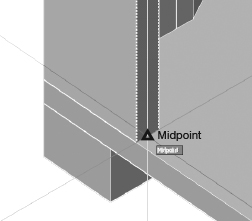
Type MOVE. Select the rear wall and set it in place, so that its outer face aligns with the midpoint of the corner post as shown in the figure below.

14

8.5 Zoom in on the top of the rear wall. (See the diagram below.)

Spin the center wheel on the mouse, or type Z at the Command prompt and drag the mouse to define a zoom window.

15

8.6 Build a rail along the top of the rear wall.

Type BOX. Begin the box by clicking on the corner point marked C in the diagram above. For the second point, zoom in on the other end of the wall, and click on the point marked D in the diagram below. For the height, type 4.5.

16

9 CONSTRUCT THE ROOF:

9.1 Zoom out.

Type Z at the Command prompt, then type E.

9.2 Zoom in on the right side (the front) of the shipping container.

Spin the center wheel on the mouse, or type Z at the Command prompt and drag the mouse to define a zoom window.

9.3 Build a rail across the top of the door opening.

Type BOX. Use the points on the corner boxes to set the dimensions of the box base. If you use the points at the top of the corner boxes, you can set the height as -4.5 (negative 4.5) and the box will fit between the corner boxes as shown in the diagram below.

17

9.4 Set ROOF as the current layer.

In the Layers palette, click the radio button next to the ROOF layer. Note: The current layer will receive any newly created objects.

9.5 Zoom out.

Type Z at the Command prompt, then type E.

9.6 Outline the roof.

Type POLYLINE. Trace the outline of the roof opening between the top rails on all four walls.

9.7 Isolate the ROOF layer.

In the Layers palette, turn off all layers except the ROOF layer.

9.8 Extrude the roof.

Type EXTRUDECRV. Select the outline you just drew and use -1 (negative 1) as the height.

9.9 Cap the extrusion.

Type CAP. Select the extrusion you just created. Press [Enter] to complete the command.

10 CONSTRUCT THE DOOR:

10.1 Restore the previous layer settings.

In the Layers palette, turn on all layers.

10.2 Set DOOR as the current layer.

In the Layers palette, click the radio button next to the DOOR layer. Note: The current layer will receive any newly created objects.

10.3 Rotate the view so you are looking at the front of the container. (Refer to the picture below.)

Press and drag the right mouse button to rotate the view.

18

10.4 Build the first door.

Type BOX. For the first corner, click on a point away from the shipping container (we will move the box into its correct position later). For the other corner of the box base, type @1,3’9-1/2”. For the height, type 7’7.

10.5 Move the door into its correct position.

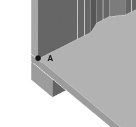
Type MOVE. Select the door and set it in place, so that its inner face aligns with the point marked A in the figure below.
19

10.6 Mirror the door.

Type MIRROR. Select the door and mirror it around the midpoint of the shipping container floor. This completes the model.

container-12

Step-by-Step: Image Trace in Illustrator

Illustrator’s Object > Image Trace commands are used to automatically trace a raster image, creating vector geometry. These commands are especially useful as a step in constructing digital contour models from scanned topographical maps, and other similar tasks.


AN IMAGE TRACE WORKFLOW:

1.  Open a raster image (e. g., a scan or a photograph) in Photoshop.

2.  Using Photoshop, convert the image to a bitmap figure-ground. You will probably need to experiment with the right combination of options to achieve good results. Try using Photoshop’s Filter > Gaussian Blur command to blur the image before converting it to a bitmap (Image > Mode > Bitmap). When converting the image, the 50% Threshold option will usually give the best results. After converting it, change the image mode to Grayscale, and try blurring it again. (The right combination of commands will depend on the resolution and composition of the image.) Save the bitmap image as a TIF file.

3.  Open or Place the image in Illustrator.

4. Use the Selection tool (the arrow tool) to select the image.

5.  Choose Window > Image Trace. This brings up the Image Trace options panel.

6. In the Image Trace options panel, set the Preset to Line Art.

7. Experiment with other settings (including the Advanced settings) to achieve optimal results, depending again on the resolution and composition of your original image.

8. After completing the trace, click on the resulting object and choose Object > Image Trace > Expand.

9. Copy the resulting object into a new Illustrator file. You can also save it as a .DWG or .DXF file, which you can open, import, or link to Rhino, AutoCAD, SketchUp, or Revit.

Illustrator: Artboards

Every Illustrator document contains one or more rectangular Artboards (up to a maximum of 100 per document). An Illustrator artboard is analogous to a rectangular piece of paper on which artwork is drawn or pasted. It is similar to an AutoCAD Layout space.


STARTING A NEW FILE.

Whenever you use File > New to start a new Illustrator file, you are prompted to select the number of artboards. By default, the value is 1 (one) artboard, but a single Illustrator file can have up to 100 unique artboards. Entering any number greater than 1 will cause Illustrator to prompt you to select a numbering/display order for the artboards.


EDITING ARTBOARDS.

While working on an Illustrator file, you may need to edit (or add or delete) artboards. This can be done at any time by choosing File > Document Setup and clicking on the Edit Artboards button. The resulting interface includes an options bar (top of the screen) with several customizing options as detailed below. (Note that in the case of multiple artboards, each artboard can have unique settings such as size and orientation.)
The Presets box allows you to select from several standard, predefined artboard sizes. (Artboard sizes can also be customized by dragging handles or by entering custom values for the Width and Height settings.)

The Orientation toggle allows you to select the orientation (portrait or landscape) of the selected artboard.

The Name box allows you to specify a unique name for the selected artboard.

The Move/Copy Artwork with Artboard toggle is either on or off, and controls whether Illustrator objects move if the artboard is moved.

Clicking and dragging within the interface creates a new artboard.

Clicking within an artboard selects the artboard.

Clicking the selection tool (the arrow tool) closes the artboard editing interface, saving your changes, and returns you to the basic Illustrator interface.


TO PASTE ARTWORK ON MULTIPLE ARTBOARDS:

1. Select and copy the artwork you wish to paste.

2. Choose Edit > Paste on All Artboards.

Photoshop: Selection

Photoshop allows you to define areas upon which you will apply a tool or command. The act of defining such an area is called selection. The simplest selection tool is the marquee, or rectangular selection tool.


USING THE MARQUEE SELECTION TOOL:

1.  Select the Rectangular Marquee Tool (upper-left-hand corner of the tools palette).

2.  Drag the mouse within the image to draw a rectangular area.

3.  Apply one of the Image > Adjust tools (such as Image > Adjust > Color Balance) to see its effect.

4.  Choose Select > None to clear the selection boundary.


THE LASSO TOOLS:

The lasso tool makes freely curved selections and the polygonal lasso makes polygonal selections.


THE MAGIC WAND TOOL:

The magic wand tool selects adjacent pixels with similar levels of brightness. In the options palette (along the top of the screen), you can set the tolerance of the wand, from 0 (highly discriminating) to 255 (does not discriminate between different values).

Using the magic wand tool:

1.  Choose the magic wand tool from the toolbar. In the options palette, set the tolerance to 30 or 40.

2.  Click within an area of solid color in your image.

3.  Apply one of the Image > Adjust tools to see its effect.

4.  Choose Deselect from the Select menu and then repeat the above steps with different values for tolerance.


SELECTION TOOLS UNDER THE SELECT MENU:

Select > All  selects the entire image.

Select > Deselect  deselects everything.

Select > Reselect reselects the last selection.

Select > Inverse selects any deselected areas while unselecting any selected areas.

Select > Color Range produces similar results as the Magic Wand followed by Select > Similar, although Color Range gives a greater degree of control.

Select > Modify > Border selects a border of specified width along the current selection boundary.

Select > Modify > Feather makes the selection edges soft rather than sharp.

Select > Grow enlarges any selection(s) to include adjacent areas with similar colors.

Select > Similar selects pixels similar in brightness to the currently selected pixels.

Select > Transform Selection allows you to stretch, distort, or rotate a selection boundary.


MOVING AND COPYING SELECTIONS.

Use the Move tool (upper right-hand corner of the Tools palette) to move or copy selected areas. To move selected pixels, choose the move tool and drag the selection with the mouse. To copy, hold Alt while dragging the selection. Hold the Shift key down to constrain the movement of the mouse to horizontal, vertical, or 45 degree motion.


DISTORTING SELECTIONS.

Options under Edit > Transform are useful for scaling, rotating, or otherwise transforming selected pixels. To accept a transformation, press Enter.

To distort a rectangular selection:

1. Use the marquee tool to select a rectangular area.

2. Choose Edit > Transform > Distort. You will see “handles” appear at the corners and sides of the selected area.

3. Use the mouse to move one or more of the corner handles. The selected area will distort to the modified boundary. Press Enter to complete the action.


SAVING SELECTIONS.

Once a selection is defined, it can be saved for later use. (Note that what is being saved is not the content of the selected area, but the shape and quality of the selection border.)

Selections are saved in Channels. Channels are simply grayscale images that correspond to the overall shape of your Photoshop image. The level of gray in a channel corresponds to the “amount” of selection – completely black areas are 100% unselected, and completely white areas are 100% selected.

Photoshop: Layers

Photoshop images can be composed of more than one layer. Layers are like sheets of transparent film on which pixels are painted. Layers may be edited separately and individual layers can be made visible or invisible. Layers can be rearranged; their opacity may be changed; their blending mode can be altered, providing different overlay effects. Be aware that each new layer adds a significant amount of information to your file size.

Once selected, a group of pixels can be copied and pasted within its original image or into a new one. The act of pasting creates a new layer (see Windows > Layers).

A multi-layered image can be flattened to save file space and reduce printing time, but the flattened layers cannot be separated. For this reason, it’s good practice to choose File > Save As before flattening layers in a Photoshop image.


LAYERS PALETTE BASICS:

Make a layer current by clicking its name in the Layers palette. Any actions you perform will (in general) affect only the current layer.

Click on the eye symbol in the Layers palette to make a layer invisible or visible.

Change the opacity of the current layer by sliding the bar at the top of the palette. (Note: you cannot change the opacity of the Background layer.)

Change the display order of layers by dragging them up and down on the list.


LAYER BLENDING MODES:

Normal assumes that the top layer is opaque, unless adjusted by some other means (e. g., the Opacity setting in the Layers palette).

Multiply treats white pixels in the top layer as transparent. 50% white pixels are treated as 50% transparent, and so on.

Screen is exactly the opposite of Multiply. Black pixels in the top layer are treated as transparent.

Overlay combines the effects of Multiply and Screen. 50% (gray) pixels in the top layer are treated as completely transparent. Dark pixels become darker and light pixels become lighter.


LAYER ACTIONS:

To add a new layer: In the Layers palette, choose Layer > New Layer and give it a name. By default, new layers are totally transparent in Photoshop until you paste something onto them or paint on them.

To combine layers: In the Layers palette, choose Layer > Merge Visible to combine the visible layers onto the current layer.

To make the entire image into a single layer: In the Layers palette, choose Layer > Flatten Image.


COPYING BETWEEN LAYERS:

1.  Activate the layer you want to copy from and make the selection. Choose Edit > Copy.

2.  Activate the layer onto which you want to paste the selection. Choose Edit > Paste. Photoshop will automatically create a new layer above the current layer.

3.  (Optional.) Click on the new layer in the Layers palette and choose Layer > Merge Down. (This combines the new layer with the layer immediately below.).


Photoshop: Image Resolution

Every Photoshop image is rectangular in shape, corresponding to a fixed measurable size (in inches), and exists at a fixed resolution (usually expressed in pixels per inch).

72 pixels per inch is appropriate for on-screen display (e. g., websites).

300 pixels per inch is appropriate for printed photographs.

600 pixels per inch is appropriate for printed vector drawings and/or text.

Image resolutions greater than 600 pixels per inch might arise in the case of scanned slides.

Use Photoshop’s Image > Image Size command to change an image’s measured size and resolution.